
Give a routine a tag
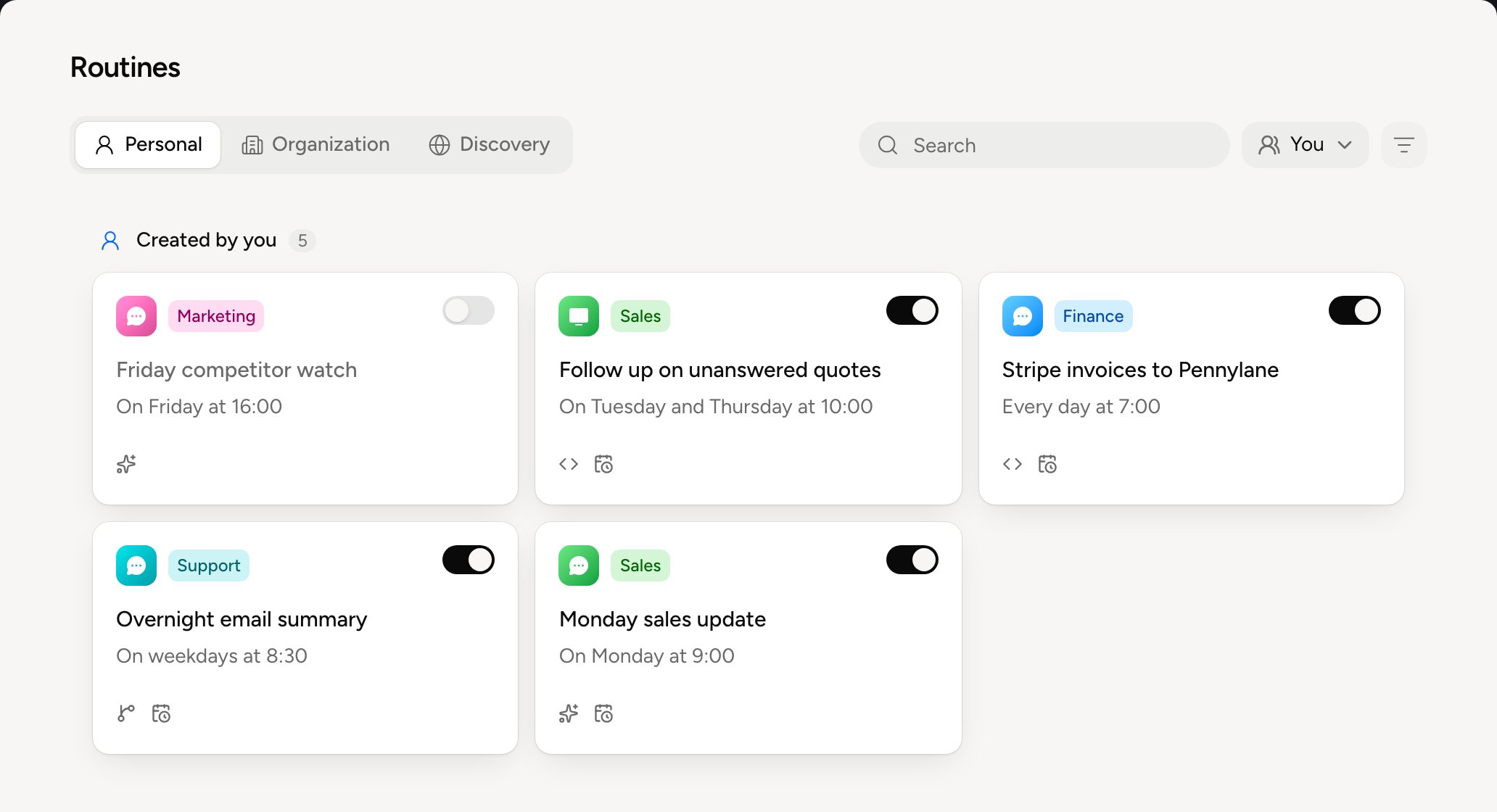
On the card of a routine with no tag, click the tag icon next to the routine’s icon (Add a tag). The same icon sits under the title on the routine’s page.1
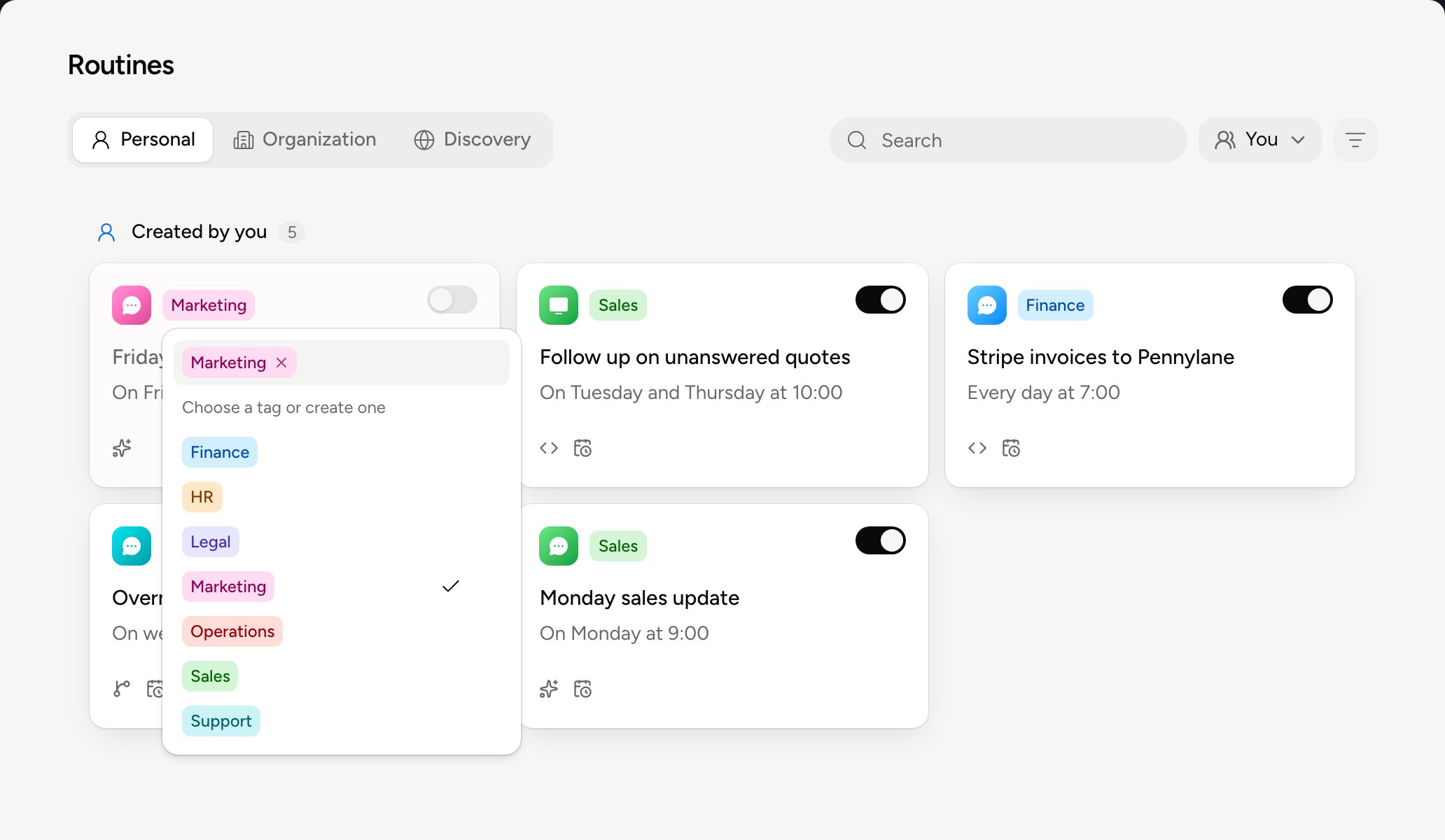
Pick a tag
Click a tag in the list. To find one, type part of its name in Search or create.
2
Or create one
Type a name that doesn’t exist yet, then click Create. The tag is created and given to the routine.
Rename, recolour or delete a tag
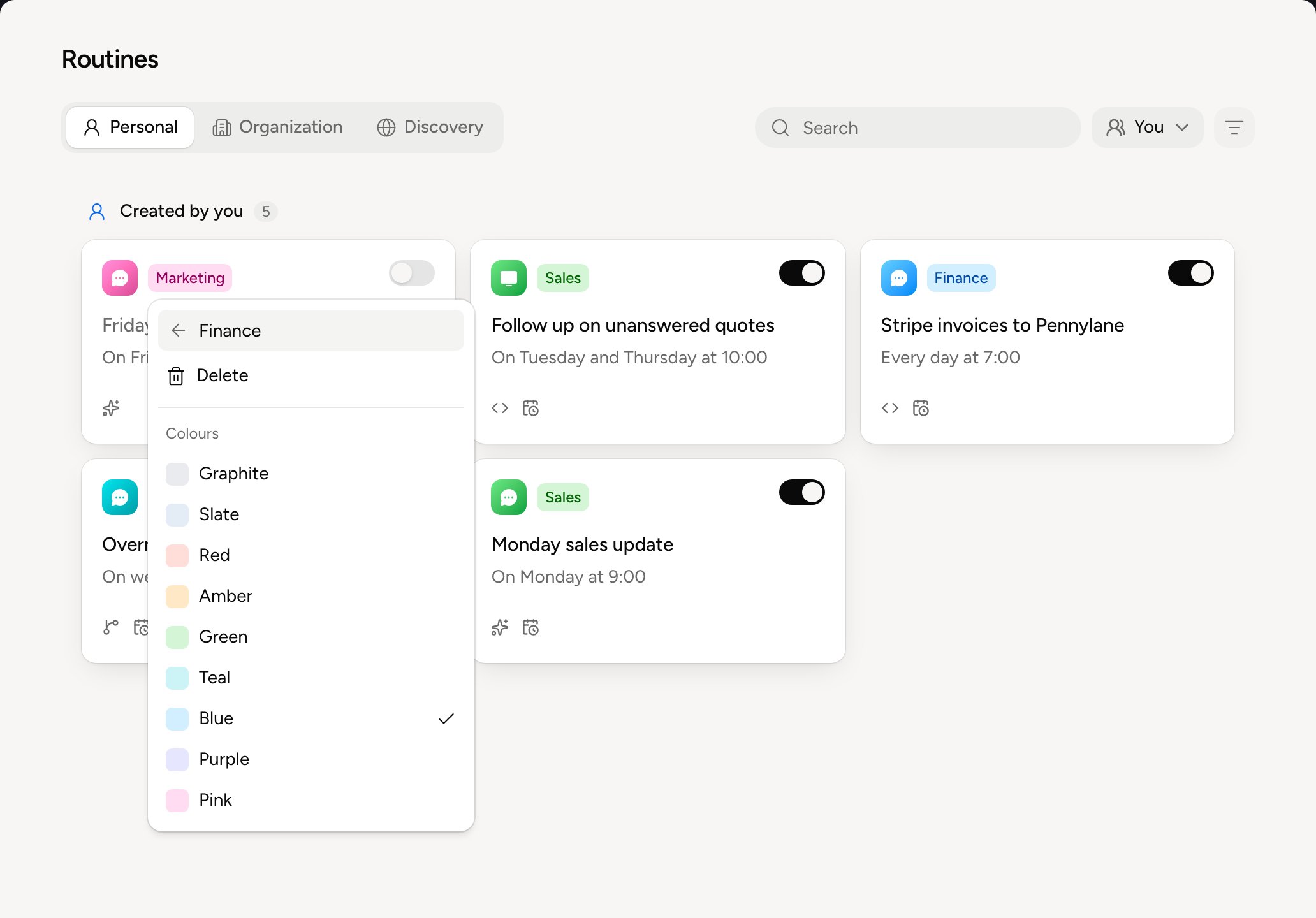
In the list of tags, hover a tag and click ⋯.- Change its name in the field at the top. It’s saved when you press Enter or leave the field.
- Pick a colour under Colours.
- Click Delete, then Confirm delete.
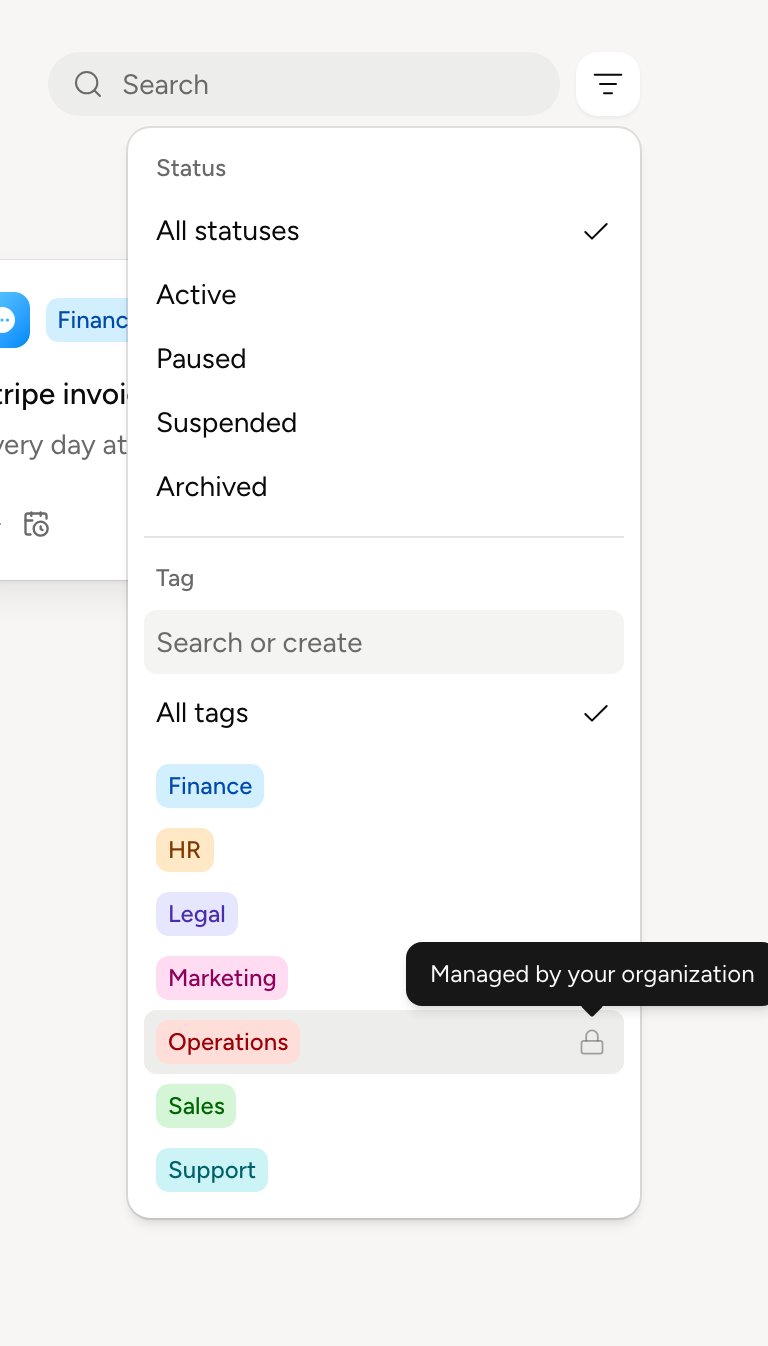
Filter your routines
The filter button, next to the search, filters the list by Status and Tag. Check several statuses or several tags to see them together: a routine shows if it has one of the checked statuses and one of the checked tags. A blue dot on the button says a filter is on, and Reset clears them all in one click.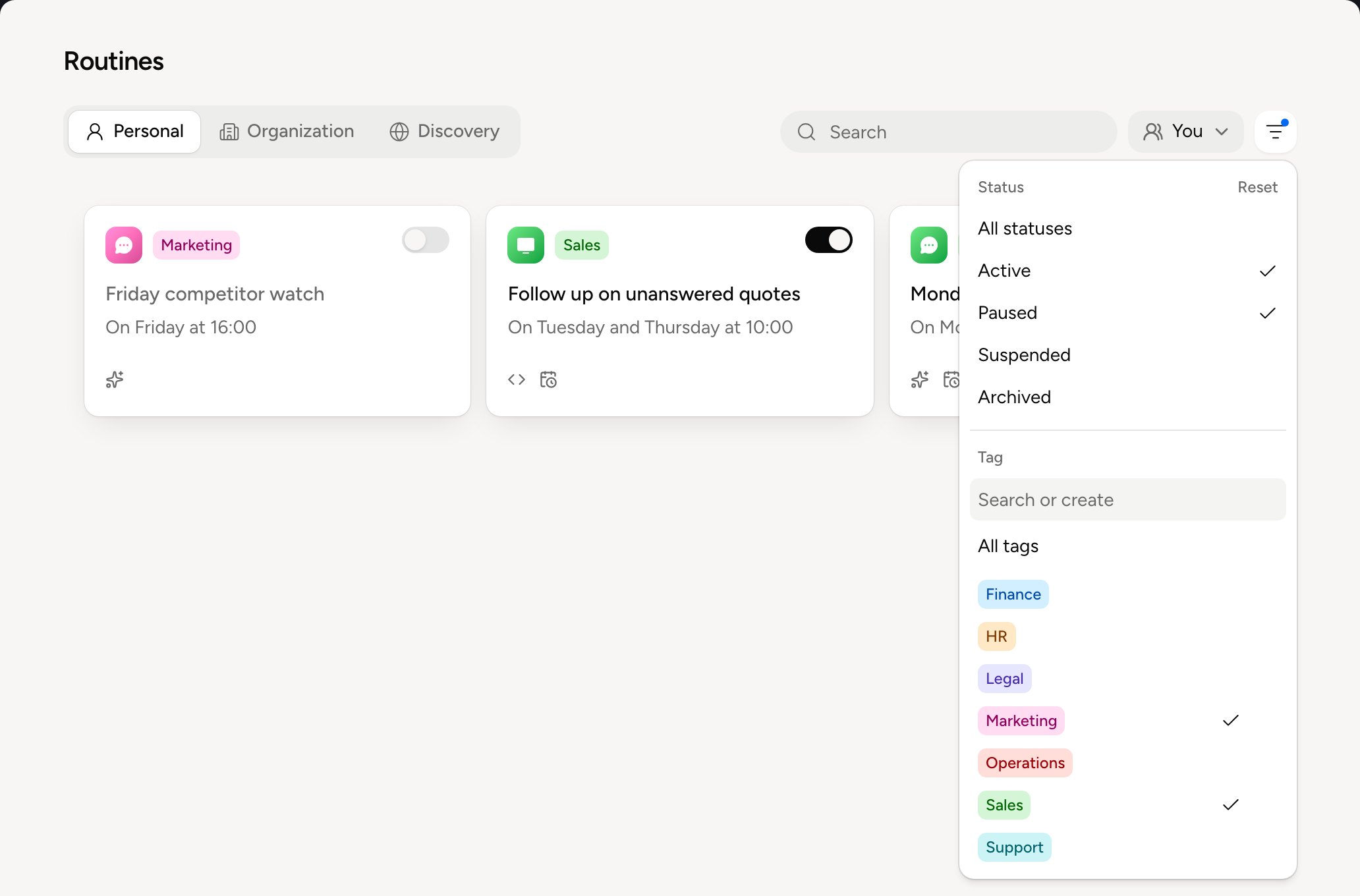
Tags on the organization’s routines
When an administrator deploys a routine, its tag goes with it: everyone who gets it sees it with that tag. If it has none, an administrator can give it one later. Only the organization’s administrators and owner can change it, from the routine’s card in the Organization tab or from its follow-up page. Everyone else sees it without being able to change it.Tags in Discovery
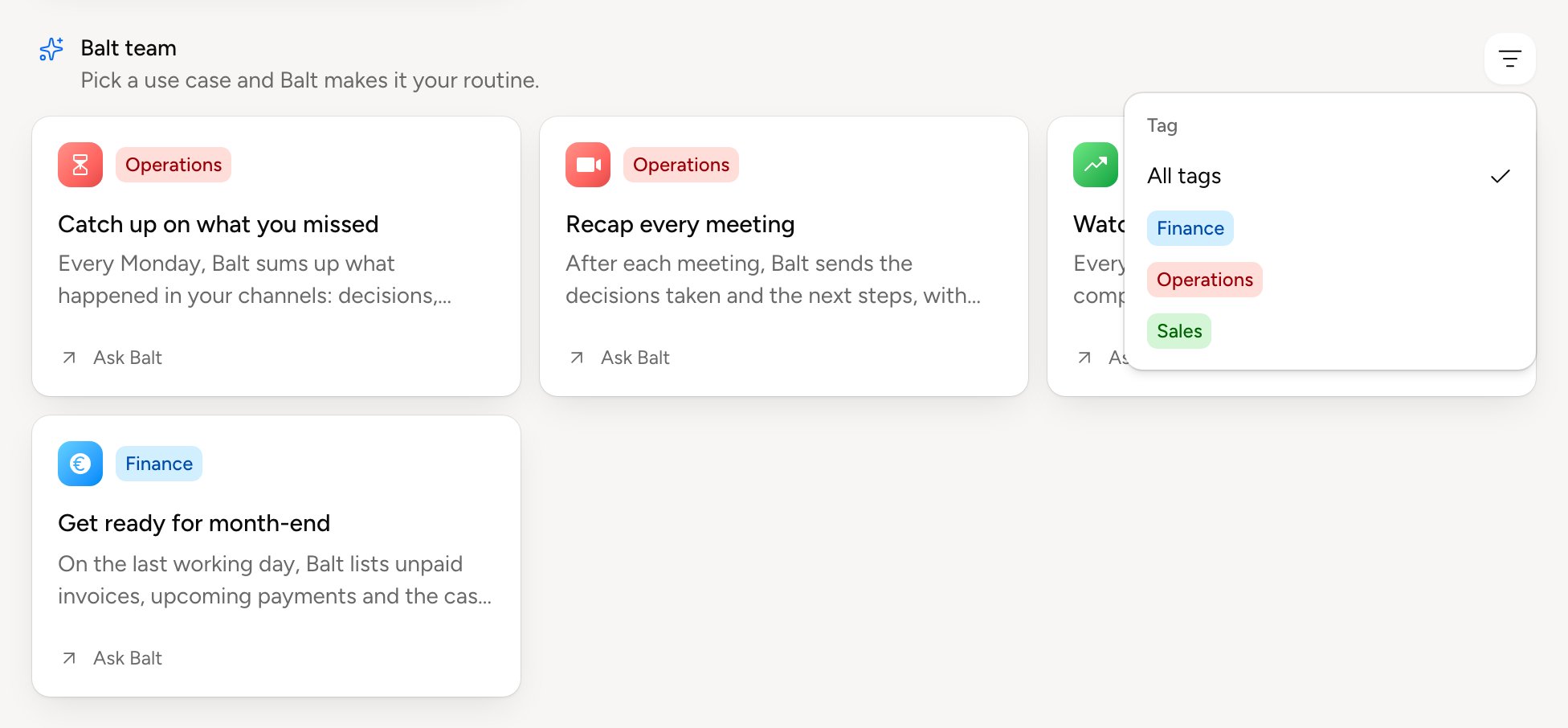
The cards in the Discovery tab have a tag too. Balt picks the tags of its own use cases. The author of a shared routine picks its tag from your organization’s tags. Each section has its own filter button, which offers only the tags its cards wear. The search looks through the cards’ titles and descriptions. The routine Balt creates from a card takes its tag.