

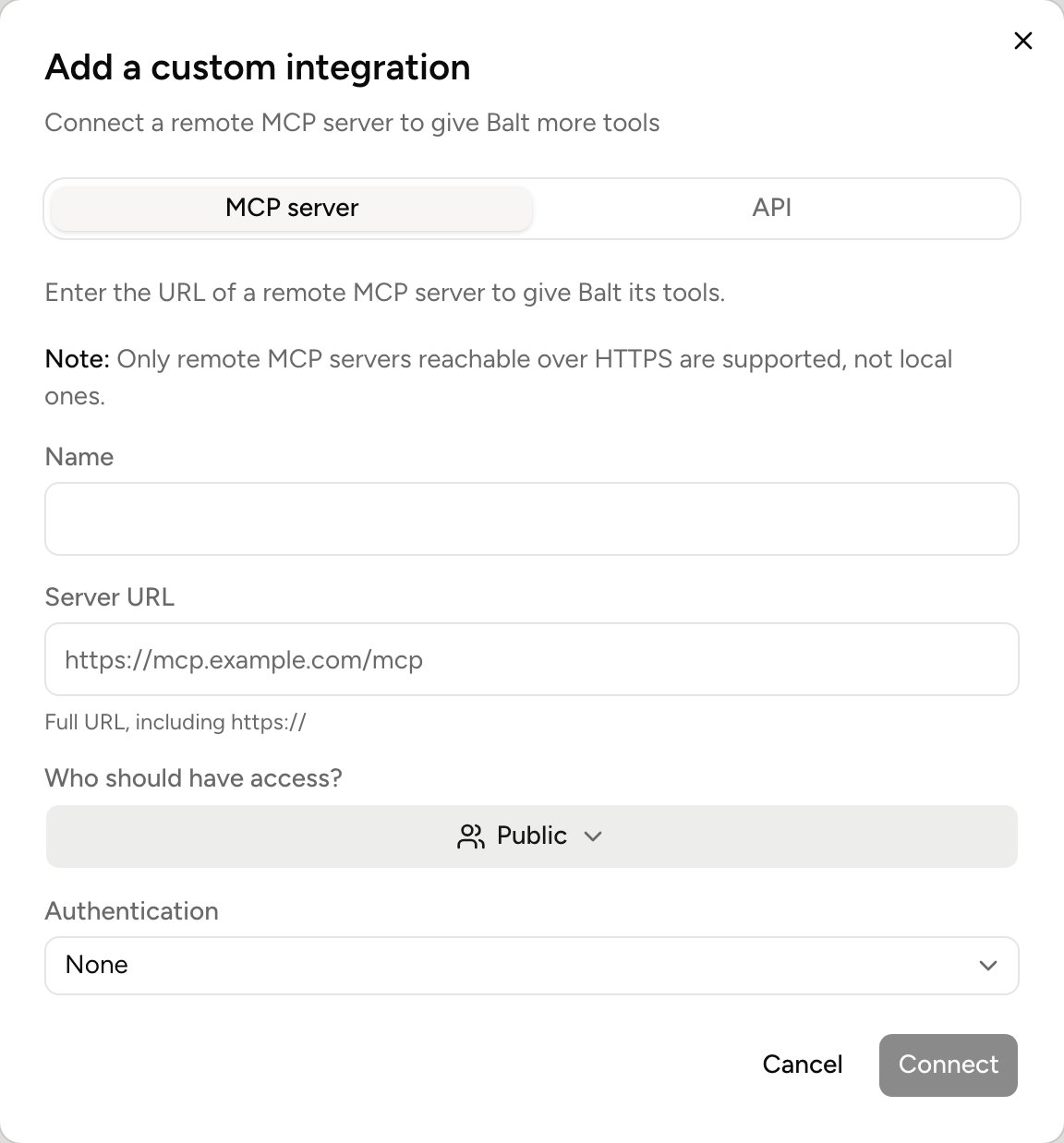
Click Custom, at the top of Integrations. Only administrators see this button. The integration then appears in the whole organization’s catalog.

An MCP server

Add an MCP server
Only remote MCP servers reachable over HTTPS are supported. Once the server is added, each of its tools is set like any other: see What Balt does alone. With API key in a header, also give the Header name, for example X-API-Key, and the API token. With OAuth, leave the fields empty when the server can provide them: Authorization URL and Token URL are detected, Client ID is created automatically if the server allows it, Client secret isn’t needed for a public client, Scope takes the server’s defaults. Click Authorize to approve Balt at the server. If authorization doesn’t finish, the card shows Authorization incomplete. Open it and click Finish connecting.

An API
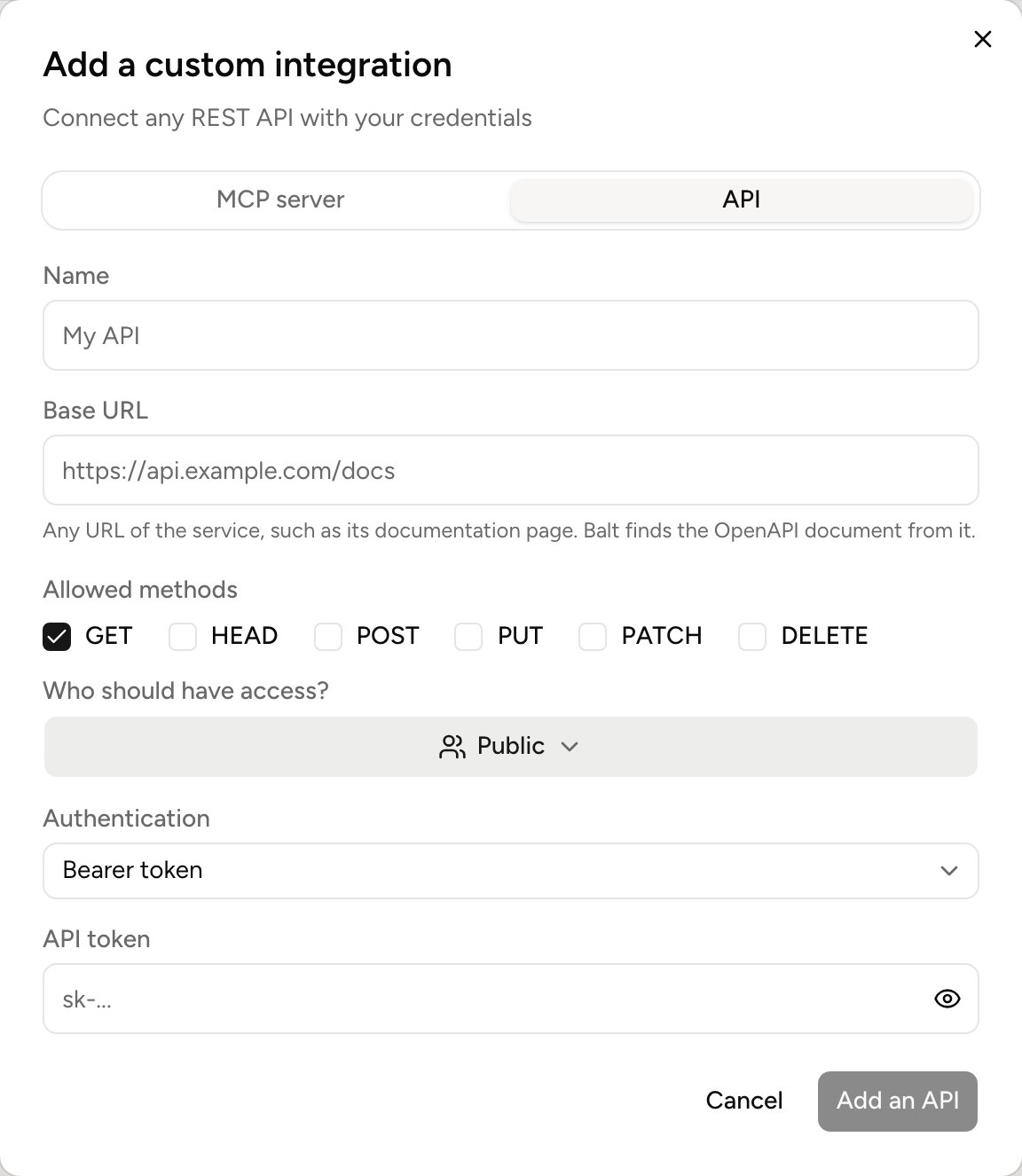
Add an API
Click Add an API. Balt reads the API’s description before adding it, and keeps only the methods it offers.

Ready-made servers

The catalog also offers MCP servers already set up, like Allo, Cobl or Kalent. An administrator opens one and clicks Connect.

Remove a custom integration

In the account’s ⋯ menu, Remove the server takes it out of the catalog with its tools, credentials and Balt’s notes. It can’t be done while a skill or a routine still uses it.